Samsung Smart Switch Mobile
- 3.9
- Rating
- 1.00B
- Installs
- Free
- Price

 Analysis by App-foxy
Moving to a new phone is usually exciting until the first setup screen asks where your contacts, photos, messages, and other personal files are. I tested Samsung Smart Switch Mobile as a practical transfer tool, and my overall impression is that it is most useful when at least one side of the move is a Samsung Galaxy device. It is free, aimed at everyone, and made by Samsung Electronics Co., Ltd., so it feels less like a general backup utility and more like a guided bridge between an old phone and a new one.
The app belongs in the tools category rather than the everyday productivity category. I would not open it to manage files every morning or replace a cloud drive. Its purpose is more focused: help you move your personal phone content during a device change. That narrow purpose is also its main strength. When it works as expected, it removes much of the manual copying that makes a phone upgrade tiring.
There is a useful detail to know before installing it: on some Samsung phones, Smart Switch can already be opened from the device’s Settings menu. If downloading the app is difficult, checking Settings is a sensible first step. That small shortcut matters because people often search for a separate download while the transfer tool is already available on the phone.
In-Depth Coverage of Samsung Smart Switch Mobile
Where the transfer usually gets stuck
The first point of friction is often not the transfer itself but the connection between the two phones. Users may expect the app to discover the other device immediately, yet the process still depends on both phones being awake, nearby, and following the same connection instructions. A locked screen, an interrupted pairing prompt, or switching away from the app at the wrong moment can make the process appear frozen even when neither phone is damaged.
I also found that expectations can be too broad. Smart Switch is designed to help move phone content, but that does not mean every app, account, setting, or piece of protected data will behave exactly as it did on the old device. Some applications restore through their own accounts or services, while certain sign-ins still need to be completed manually. I would treat Smart Switch as a strong migration assistant, not as a perfect clone of the old phone.
Another common stumbling block is storage on the receiving device. A transfer can begin normally and then become troublesome if the new phone does not have enough room for everything selected. This is why I prefer checking the new phone before starting, especially when the old device contains many videos or a large photo library. Selecting everything immediately is convenient, but it can create unnecessary pressure if the new phone has less available space.
The safest mindset is to use Smart Switch as one part of a move, not as the only copy of important memories. I would keep the old phone untouched until I had opened the new phone and checked the content that matters most. That simple habit protects against the most frustrating mistake: erasing the source before confirming that the destination is complete.
What to check before opening the transfer screen
Before starting, I recommend charging both phones or at least making sure neither one is close to shutting down. A transfer interrupted by a dead battery is much more annoying than one delayed for a few minutes. I would also remove unnecessary clutter from the old phone if storage is tight, but only after deciding what should be preserved. Deleting files just to make the transfer look cleaner can turn a setup task into a recovery problem.
It helps to place both devices on a stable surface rather than carrying them around while the process runs. Keep the old phone accessible because it may request confirmation or display a permission prompt. If the screen turns off repeatedly, temporarily changing the screen timeout can make the process easier to monitor. I would avoid starting the move while travelling, during a busy workday, or when the old device is needed for authentication.
The app supports a straightforward approach for people who do not want to think about file-by-file copying. That is valuable for family members who are uncomfortable with storage folders and manual exports. At the same time, users who want precise control over every item may find the guided approach less satisfying than a computer-based file manager or a cloud service with detailed selection controls.
Choosing the right transfer method for the situation
Smart Switch can be useful in different kinds of phone moves, but the best method depends on what is available. A direct connection is generally the approach I would try first when the two devices are together and compatible. It avoids relying on a lengthy upload and download cycle, and it keeps the migration tied to the phones in front of you.
If a direct attempt does not behave properly, I would not repeatedly restart it without changing anything. First, I would close the transfer screens on both devices, reopen the app, and make sure both phones are still unlocked and close together. If the app offers a choice of connection methods, I would follow the on-screen instructions rather than guessing which phone should initiate the connection.
For a phone that cannot be kept beside the new one, a computer-assisted or backup-based workflow may be more practical, depending on what the devices support. The important trade-off is convenience versus control. Direct phone-to-phone movement is easier for a one-time upgrade, while a computer or cloud-based route may be preferable when you want an additional copy or need to repeat the process later.
I would also avoid treating a successful app installation as proof that the migration is ready. The current version is 3.7.71.16, and the minimum operating system requirement is Android 6.0. That makes the app accessible to many older Android devices, but compatibility between the particular source and destination phones still matters more than the version number alone.
A realistic moving-day workflow
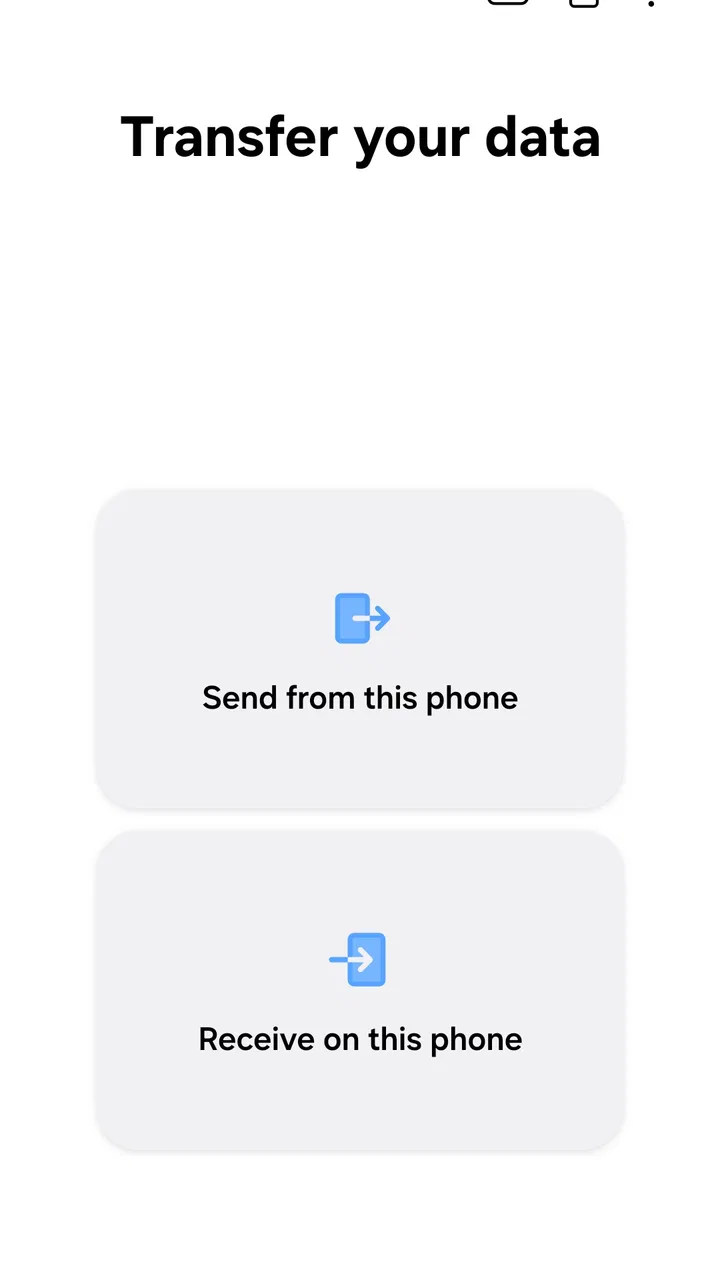
Imagine replacing an older Galaxy phone before leaving for work. I would first charge both devices, connect the new phone to the internet for its initial setup, and keep the old phone nearby. I would open Smart Switch on the new device, follow the prompts on the old one, and choose the content that is genuinely needed rather than automatically selecting every large video.
You May Also Like

 AccuWeather: Weather Radar
AccuWeather Review: A Quick, Clear Forecast for Everyday Decisions
For everyday plans, the best forecast is the one you can understand quickly. AccuWeather makes rain timing, radar, and local conditions easy to act on, with a few trade-offs.

 Hill Climb Racing
Why Hill Climb Racing Still Turns Crashes Into One More Run
A tiny car, a bumpy hill and one more upgrade: Hill Climb Racing keeps resurfacing because its simple chaos makes every near-miss feel personal.

 AliExpress - Shopping App
AliExpress Makes Global Shopping Feel Personal, but Shoppers Bear the Risk
AliExpress turns a global marketplace into a pocket-sized discovery engine. Its reach is useful, its shopping loop compelling, and its trade-offs easy to miss.

 Lords Mobile: Kingdom Wars
Lords Mobile Is a Kingdom-Building Routine, Not a Quick Match
A case-by-case verdict on the building, battles, device demands, and social commitments that make Lords Mobile rewarding for some players and exhausting for others.

 PDF Scanner app - TapScanner
TapScanner Makes Paperwork Easier to Capture, Check, and Share
TapScanner makes scanning with a phone feel less like a rescue operation and more like a dependable step in getting work done. Its capture tools are useful, though not flawless.

 Block Blast!
Block Blast! Shows How Much a Puzzle Game Can Leave Out
A quiet grid game shows why puzzle players increasingly value instant clarity, repeatable skill and low-pressure play—and where the genre still needs to catch up.
More From Our News Desk
View All News


While the transfer runs, I would leave both phones alone and avoid answering calls or opening unrelated apps. Afterward, I would check contacts, recent photos, message history, calendar entries, and the files used most often. I would then open several important applications individually because an app appearing on the new phone does not guarantee that its account session or internal data has returned.
Only after those checks would I reset or trade in the old phone. This workflow takes a little patience, but it is more reliable than judging success from a completion message alone. The non-obvious benefit is that it turns the transfer into a checklist rather than a single moment of hope.
Recovering when the workflow breaks
When Smart Switch stops progressing, I start with the least dramatic explanation. I check whether either phone is locked, whether a prompt is waiting behind another screen, and whether the devices have moved too far apart. I then reopen the app on both phones and try again without changing several variables at once. This makes it easier to tell whether the issue was a temporary connection problem or a deeper compatibility limitation.
If the transfer repeatedly fails at roughly the same point, I would reduce the selection. Large videos, extensive photo collections, or a crowded storage destination can make a full move harder to complete. Transferring essential contacts and messages first, then moving bulky media in a separate attempt, is a useful recovery tactic. It also gives you a usable new phone sooner instead of waiting for one enormous operation.
That staged approach is one of the most practical ways to use the app. I would begin with personal information that is difficult to recreate, continue with photos and videos, and leave less important downloads for later. It reduces the impact of an interruption and makes it easier to identify which type of content is causing trouble.
If a transfer stops after the phones have been connected for a while, I would not immediately delete anything from the old phone. I would inspect the new phone to see what arrived, then retry only the missing categories if the app allows that choice. Keeping the source intact gives you options. Starting over from a partially altered situation is much harder to diagnose.
Small checks that prevent repeated failures
One overlooked check is available space on the new device. I would open its storage settings and remove only disposable items before retrying. Another is the condition of the old phone: if it is already unstable, overheats, or shuts down during normal use, the transfer app may simply be exposing a hardware problem that was waiting to appear.
I would also keep the phones still during wireless movement and avoid assuming that a brief interruption is harmless. If the connection method depends on both devices remaining close, placing one phone in a bag or another room can be enough to derail the process. For a large move, a wired method or a computer-based route may be a better choice when available.
After a retry, I check content in several places rather than relying on one visible folder. Contacts, for example, may be associated with a phone account rather than stored locally. Photos may appear in a gallery but still need time to finish indexing. Messages can be present while application-specific conversations remain separate. This distinction helps avoid blaming Smart Switch for behavior controlled by another service.
When the app is not the real cause
Some missing information is caused by account security, app design, or cloud synchronization rather than the transfer tool. Banking applications, authenticator tools, and services with sensitive sign-ins commonly require extra setup on a new phone. I would prepare recovery details before beginning the move, because a successful content transfer cannot replace a service’s own security checks.
Likewise, media that was never stored locally on the old phone may depend on an online account. If a photo appears in an app but is not actually downloaded to the device, a phone-to-phone transfer may not treat it like a local file. In that situation, signing into the same service on the new phone may be more important than repeating the Smart Switch process.
There is also a difference between moving an application and moving its private internal data. Some apps restore their information automatically, some use their own backup tools, and some require a fresh login. I would make a short list of the applications that matter before changing phones and check each one directly afterward. That is more dependable than assuming a single migration tool can control every app developer’s storage rules.
For iPhone users moving to Samsung, the practical experience can involve additional platform differences. Smart Switch may still be part of the migration path, but I would pay particular attention to accounts, message behavior, media formats, and services tied to the previous platform. People making a cross-platform move should expect a little more manual review than someone moving between compatible Samsung devices.
Who should use it, and who should choose another route
I think Smart Switch is a good fit for someone buying a Samsung phone who wants a guided move without learning file-management software. It is also useful for helping a relative set up a new Galaxy device because the process is more approachable than manually copying folders. Its free price removes the need to budget for a separate migration utility, and the Everyone content rating makes it suitable for a broad audience.
The app is less compelling for someone who changes phones frequently across many brands and already has a carefully maintained cloud backup system. In that case, the cloud service may provide a more consistent long-term workflow, while Smart Switch is mainly useful during a specific move. I would also look elsewhere if you need detailed synchronization rules, scheduled backups, or a file-by-file archive rather than a guided transfer.
Users with very old or unusual devices should check the operating system requirement and the connection options before relying on it for a time-sensitive upgrade. The app has been available since April 17, 2013, and its broad reach is clear: it has passed one billion installs. Even so, popularity does not guarantee that every combination of source phone, destination phone, and content type will behave identically.
How it compares with ordinary alternatives
Compared with manually copying files through a computer, Smart Switch is less technical and usually better suited to a one-time phone replacement. You do not need to understand every folder before beginning. The trade-off is that a computer gives you a clearer view of individual files and may be preferable when you want a permanent archive outside the phone.
Compared with cloud backup, Smart Switch can feel faster and more direct when both phones are available at the same time. Cloud services are more useful when the old phone is lost, damaged, or no longer nearby. They can also fit people who want their information available across devices rather than transferred only during an upgrade.
Compared with brand-neutral migration tools, Samsung’s solution has the advantage of being closely tied to Samsung’s own setup experience. That can make the destination feel more coherent on a Galaxy phone. The disadvantage is that the experience is less attractive if your household uses a mixture of brands and you want one identical process for every device.
My practical verdict after using it
Samsung Smart Switch Mobile does one job well: it makes a Samsung phone change less manual. I like it most when both phones are present, the old device still works, and the user wants a guided route through the move. The app’s free model, broad availability, and straightforward purpose make it an easy first option for a Galaxy upgrade.
My recommendation comes with one important condition: do not erase the old phone until you have checked the new one properly. Plan for account sign-ins, confirm storage, keep the devices stable, and be ready to transfer large media in stages. Those habits matter as much as the app itself.
The current average is 3.8 from around 514 thousand ratings, with roughly 22 thousand written reviews, which suggests a widely used tool that still produces mixed experiences for some people. That feels fair to me. When the phones and content fit the expected workflow, it can save a great deal of time. When a connection, storage limit, or third-party app rule gets in the way, the guided simplicity can leave you wanting more control.
For my own recommendation, I would install it before setting up a new Samsung phone, but I would pair it with a short manual checklist and a separate backup of irreplaceable files. That combination gives you the convenience of guided migration without pretending that any transfer app can account for every device, account, and application.
FAQs for Samsung Smart Switch Mobile
01What is Samsung Smart Switch Mobile used for?
Samsung Smart Switch Mobile is designed to facilitate the seamless transfer of data from your old device to a new Samsung Galaxy device. It supports the transfer of contacts, photos, music, messages, notes, and more, making it ideal for users switching devices without losing important data.
02Is Samsung Smart Switch Mobile compatible with non-Samsung devices?
Yes, Samsung Smart Switch Mobile supports a wide range of both Android and iOS devices. While it offers the best experience with Samsung devices, it can also transfer data from non-Samsung phones, ensuring flexibility for users switching from other brands.
03How secure is the data transfer with Samsung Smart Switch Mobile?
Samsung Smart Switch Mobile ensures a secure data transfer process, using encrypted connections to protect your information. However, it's always recommended to back up your data before starting the transfer to avoid any unexpected data loss during the process.
04Does Smart Switch Mobile require an internet connection?
An internet connection is not necessary for transferring data between devices if you use the wireless transfer option. However, if you are downloading the app or using cloud services for backup, a stable internet connection will be required.
05Can I use Samsung Smart Switch Mobile for transferring apps and app data?
Samsung Smart Switch Mobile can transfer apps from one device to another, but it may not transfer app data due to restrictions. Users might need to reinstall apps and set them up again, especially for those that store data locally rather than in the cloud.
Pros
- Seamless transfer between Samsung devices.
- Intuitive user interface for easy use.
- Supports multiple data types for transfer.
- Compatible with both Android and iOS.
- Free to use without hidden costs.
Cons
- Limited functionality with non-Samsung devices.
- Requires stable Wi-Fi for optimal performance.
- May not transfer all app data perfectly.
- Not all features available on iOS.
- Occasional connectivity issues reported.

Samsung Smart Switch Mobile
Gallery